How to Install Python in 2026 – Complete Beginner’s Guide
Python is one of the most popular programming languages for beginners, students, developers, data scientists, and AI enthusiasts. If you are completely new to Python, the first step is to install Python correctly and learn how to run your first program.
In this tutorial, we will learn how to install Python in 2026 on Windows, verify the installation, and run a simple Python program.
We will also explore three different ways to run Python:
- Command Prompt
- Online Python Interpreter
- Thonny IDE
By the end of this tutorial, you will be able to install Python, write a simple Python program, and execute it successfully.
What Version of Python Should You Install in 2026?
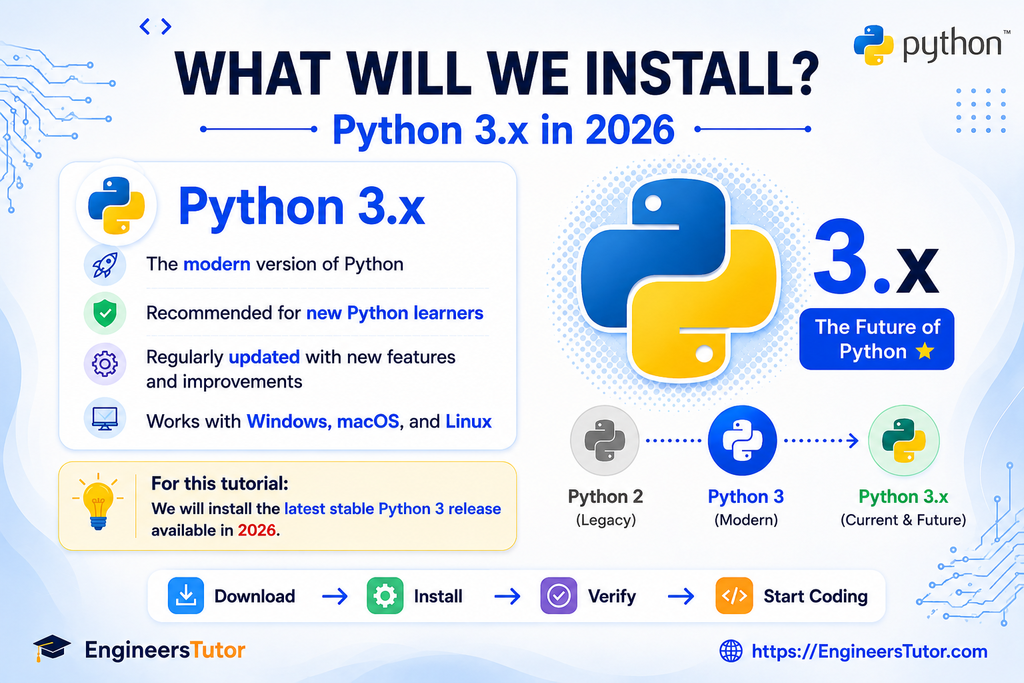
Python has two major generations: Python 2 and Python 3.
For new projects and beginners, Python 3 is the recommended choice.
As of August 2026, the latest Python 3 release listed by the official Python website is Python 3.14.7.
Python 3.14 is a current feature-release series, while Python 3.15 versions currently shown by Python.org are pre-release versions. For a beginner installation, it is better to use a stable release rather than a pre-release.
For this tutorial: We will use the latest stable Python 3 release available when you perform the installation.Because Python releases are updated regularly, always check the official Python website (https://www.python.org/) before downloading.
Where Should You Download Python?
Always download Python from the official Python website.
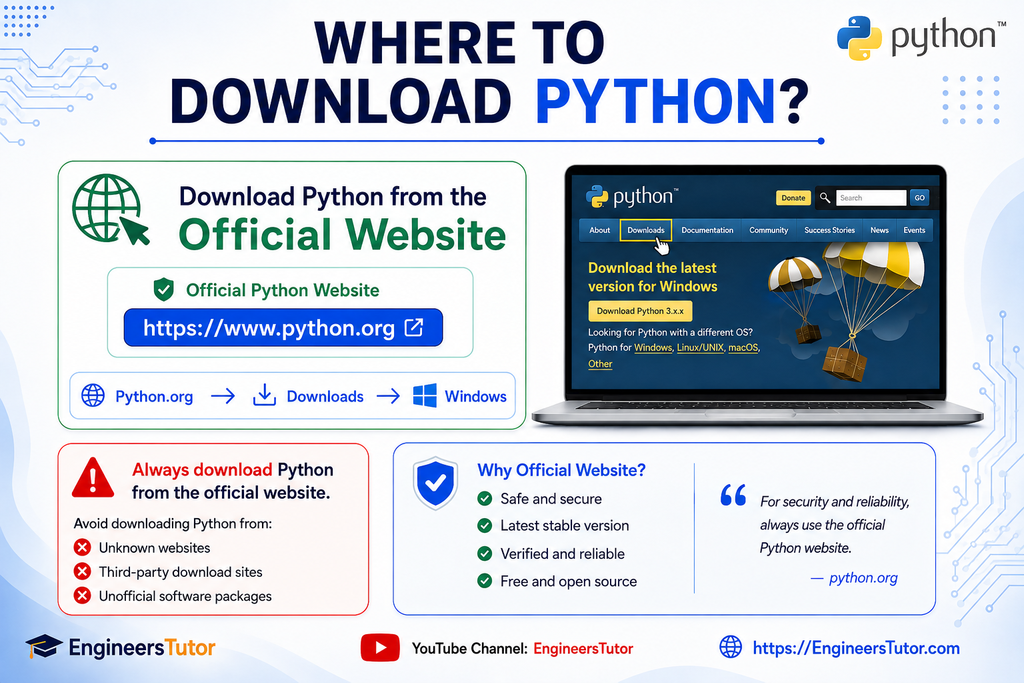
The official website is:
python.org
The official Windows download page provides the current Python releases and Windows installation options.
Avoid downloading Python installers from unknown websites or unofficial download portals. Using the official source helps ensure that you are getting the genuine Python distribution.
Official Python Resources
- Python official website (https://www.python.org/)
- Python downloads (https://www.python.org/downloads/)
- Python releases for Windows (https://www.python.org/downloads/windows/)
How to Download Python on Windows
Follow these steps to download Python.
Step 1: Open the Python Website
Open your web browser and visit the official Python website (https://www.python.org/).
Step 2: Open the Downloads Section
Go to the Downloads section and select the Windows download options (https://www.python.org/downloads/).
Step 3: Choose the Appropriate Release
Look for the latest stable Python 3 release.
For a typical modern Windows computer, the 64-bit version is generally the appropriate choice.
Step 4: Download Python
Download the installer and wait for the download to finish.
Once the installer has downloaded, you are ready to begin the installation.
Installing Python on Windows
After downloading the installer, locate the downloaded Python setup file and double-click it.
The Python installer will open.
One of the most important things to remember during installation is the PATH option.
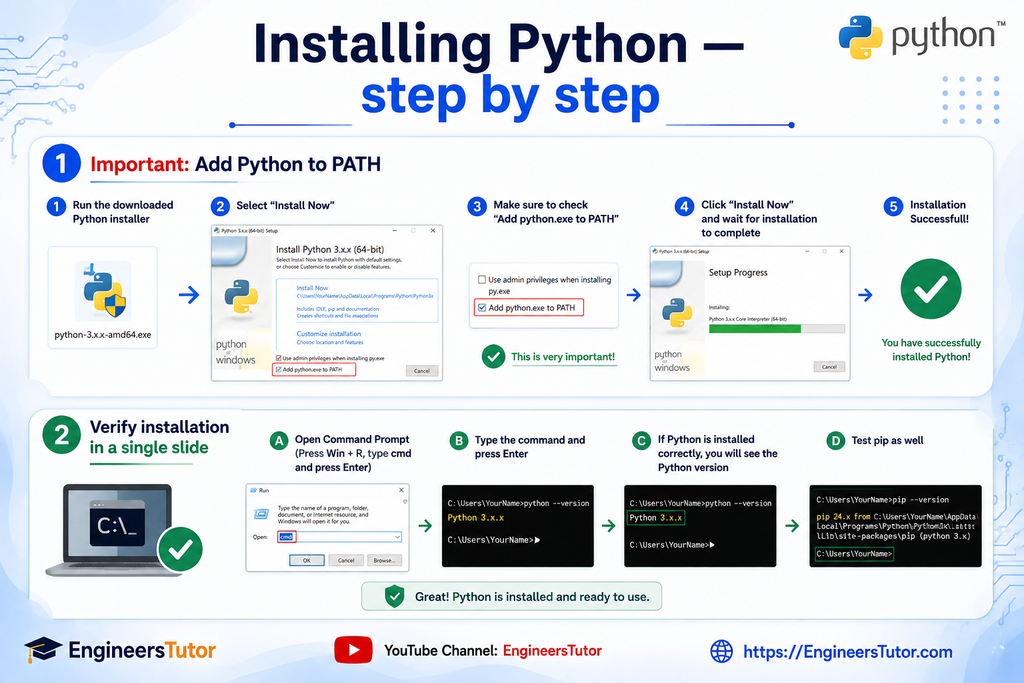
Important: Add Python to PATH
During installation, look for the option:
Add python.exe to PATH
Make sure this option is selected before continuing.
Adding Python to PATH makes it much easier to run Python commands from Command Prompt.
After selecting the appropriate option, continue with the installation.
Wait until the installation process finishes.
Once the installation is complete, Python should be available on your computer.
How to Verify Python Installation
After installing Python, it is a good idea to verify that everything is working correctly.
Open Command Prompt.
You can press:
Windows + R → type cmd → press Enter
Then type:
python --versionand press Enter.
If Python has been installed correctly, Command Prompt should display the installed Python version.
For example:
Python 3.14.7The exact version displayed may be different if a newer stable release is available when you perform the installation.
You can also check whether pip is available:
pip --versionIf both commands work, your Python installation is ready for use.
Your First Python Program
Now comes the exciting part — writing your first Python program.
The traditional first program is:
print("Hello, World!")The print() function displays information on the screen.
When Python executes the program, the output will be:
Hello, World!Congratulations! You have just written and executed your first Python program.
Running Python from Command Prompt
Command Prompt provides a simple way to interact with Python directly.
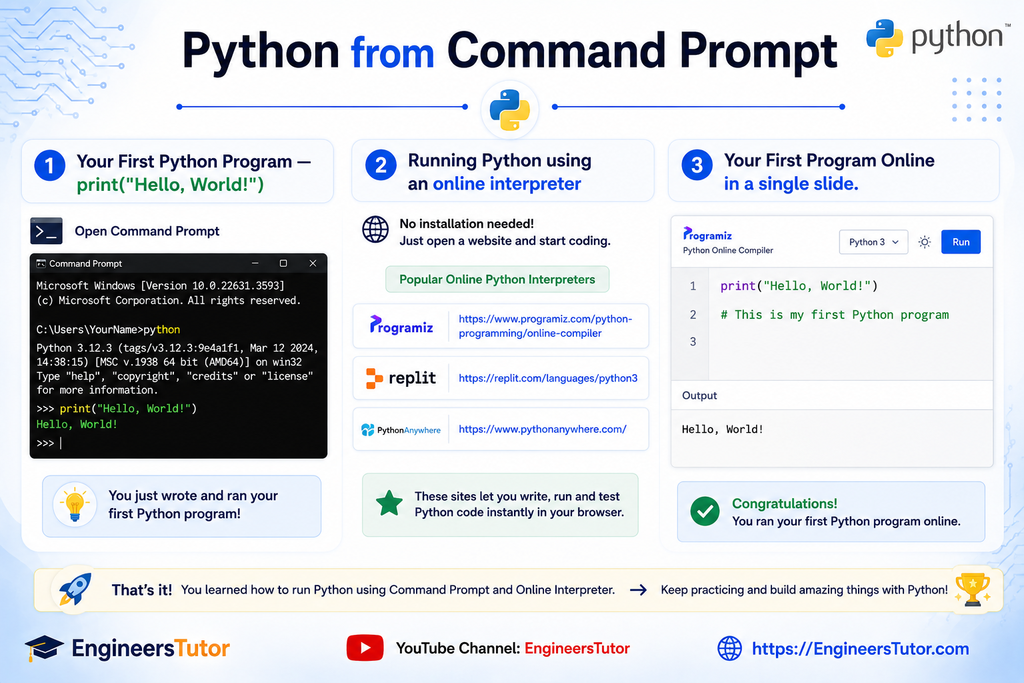
First, open Command Prompt and type:
pythonIf Python is installed correctly, you will enter the Python interactive interpreter.
You may see a prompt similar to:
>>>Now type:
print("Hello, World!")Press Enter.
Python will display:
Hello, World!This is called the Python interactive interpreter or REPL.
It is useful for quickly testing Python statements and small pieces of code.
Running Python Using an Online Interpreter
You do not always need to install Python to experiment with Python code.
An online Python interpreter allows you to write and execute Python programs directly inside a web browser.
This can be especially useful for beginners who want to try Python without installing software.
For example, you can open an online Python editor, type:
print("Hello, World!")and click the Run button.
The output will appear directly on the webpage.
Advantages of an Online Interpreter
- No local Python installation is required
- Nothing needs to be configured
- You can experiment quickly
- Useful for small programs and demonstrations
- Can be accessed through a web browser
However, an internet connection is normally required, and online environments may not provide everything needed for larger projects.
What Is Thonny?
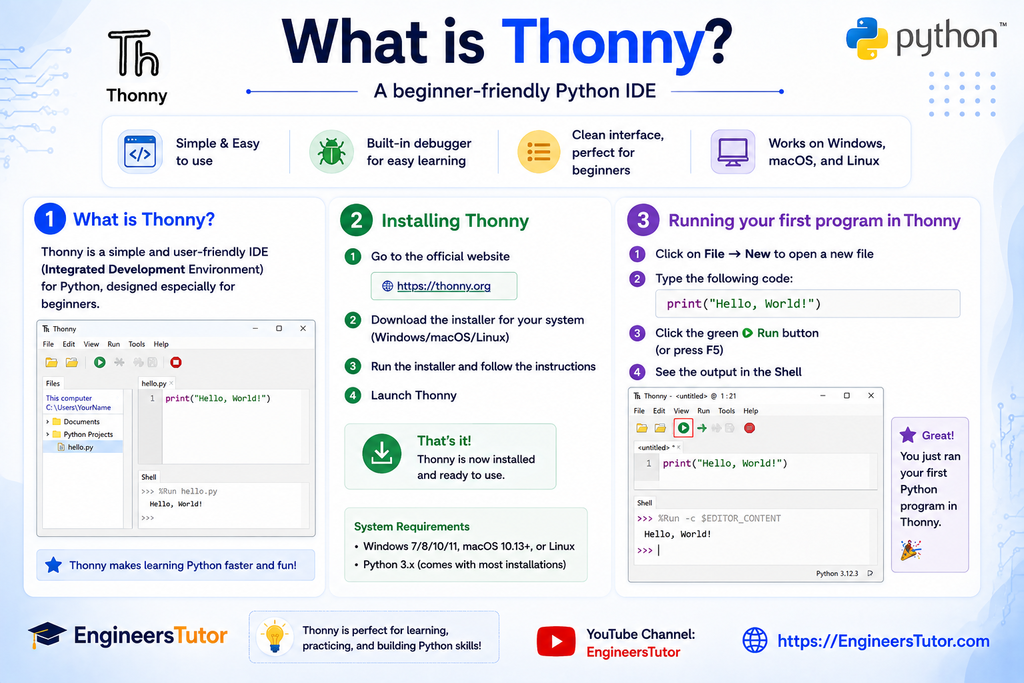
Thonny is a beginner-friendly Python IDE.
IDE stands for Integrated Development Environment.
Instead of typing Python commands directly into Command Prompt, an IDE provides a dedicated environment for writing, running, and managing Python programs.
Thonny is designed with beginners in mind and provides features such as:
- A simple code editor
- Python program execution
- Interactive Shell
- Debugging features
- A beginner-friendly interface
This makes Thonny a useful choice when you are starting to learn Python.
Installing Thonny
To install Thonny, visit its official website (https://thonny.org/) and download the version suitable for your operating system.
After downloading the installer:
- Run the installer.
- Follow the installation instructions.
- Complete the installation.
- Open Thonny.
Once Thonny opens, you can start writing Python programs.
Running Your First Program in Thonny
Create a new Python file in Thonny.
Type:
print("Hello, World!")Then click the Run button.
Thonny will execute the program and display:
Hello, World!You have now run your first Python program using an IDE.
Command Prompt vs Online Interpreter vs Thonny
There are several ways to run Python, and each method has its own purpose.
| Method | Installation | Internet | Best For |
| Command Prompt | Required | Not required | Quick commands and Python basics |
| Online Interpreter | Not required | Required | Quick experiments and demonstrations |
| Thonny | Required | Not required | Beginners learning Python |
Which One Should a Beginner Choose?
If you want to quickly test a Python statement, Command Prompt is useful.
If you want to try Python without installing anything, an online interpreter is convenient.
If you want a comfortable environment for learning Python and writing programs, Thonny is an excellent beginner-friendly option.
What You Learned
In this tutorial, you learned how to:
- Understand Python 3.x
- Find the official Python website
- Download Python
- Install Python on Windows
- Add Python to PATH
- Verify the Python installation
- Run Python from Command Prompt
- Write your first Python program
- Use an online Python interpreter
- Install and use Thonny
- Run your first program in Thonny
You now have everything you need to begin your Python programming journey.
What Should You Learn Next?
Installing Python is only the beginning.
Your next step should be to learn the fundamentals of Python programming.
A good learning sequence is:
1. Variables and Data Types
Learn how Python stores different types of information.
2. Operators
Learn arithmetic, comparison, logical, and assignment operators.
3. Input and Output
Learn how to accept information from the user and display results.
4. Conditional Statements
Learn if, elif, and else.
5. Loops
Learn for and while loops to repeat operations.
6. Functions
Learn how to divide your programs into reusable blocks of code.
7. Lists, Tuples, Sets, and Dictionaries
Learn how Python stores and organizes collections of data.
8. File Handling
Learn how to read from and write to files.
9. Modules and Packages
Learn how to use Python’s standard library and external packages.
10. Build Projects
The best way to improve your programming skills is to write programs.
Start with small projects such as:
- Calculator
- Number guessing game
- To-do list
- Student management system
- Simple quiz program
- Unit converter
As your skills improve, you can move toward web development, data science, artificial intelligence, machine learning, automation, and other areas.

Pingback:How to Run Python Programs Using Command Prompt – Complete Beginner's Guide - EngineersTutor