How to Run Python Programs Using Command Prompt – Complete Beginner’s Guide
Introduction
🐍 Writing Python code is only the beginning! Once you have written your program, the next step is to run it and see the result.
In this beginner-friendly guide, you will learn how to write a Python program, save it as a .py file, run it using Windows Command Prompt, and finally see your output on the screen.
💡 Don’t worry if you are a complete beginner! Just follow the steps and you will run your first Python program in a few minutes. 🚀
This tutorial assumes that Python is already installed on your Windows computer. If you haven’t installed Python yet, first follow our Python installation guide.
🐍 1. Write Your First Python Program
🎉 Let’s write your first Python program! You don’t need any complicated software for this example. We will use a simple text editor to write a tiny program and save it as a Python (.py) file.
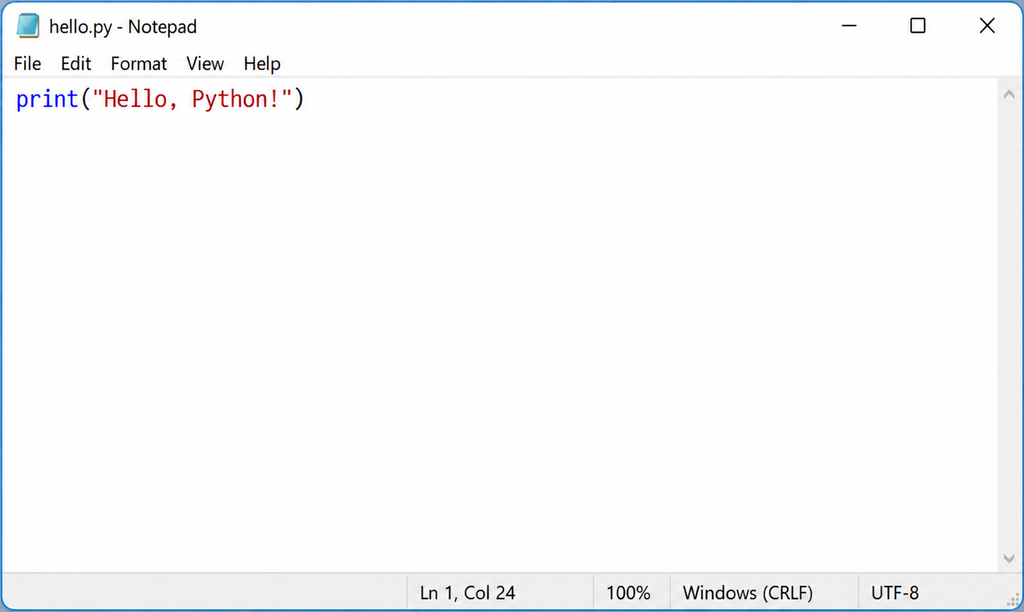
Open Notepad and type the following code:
💡 The print() function tells Python to display the message “Hello, Python!” on the screen.
⭐ Beginner Tip: Don’t worry about understanding every detail yet. For now, just remember that print() is used to display output.
💾 2. Save the Python Program
✨ Now that you have written your first Python program, it’s time to save it as a Python file.
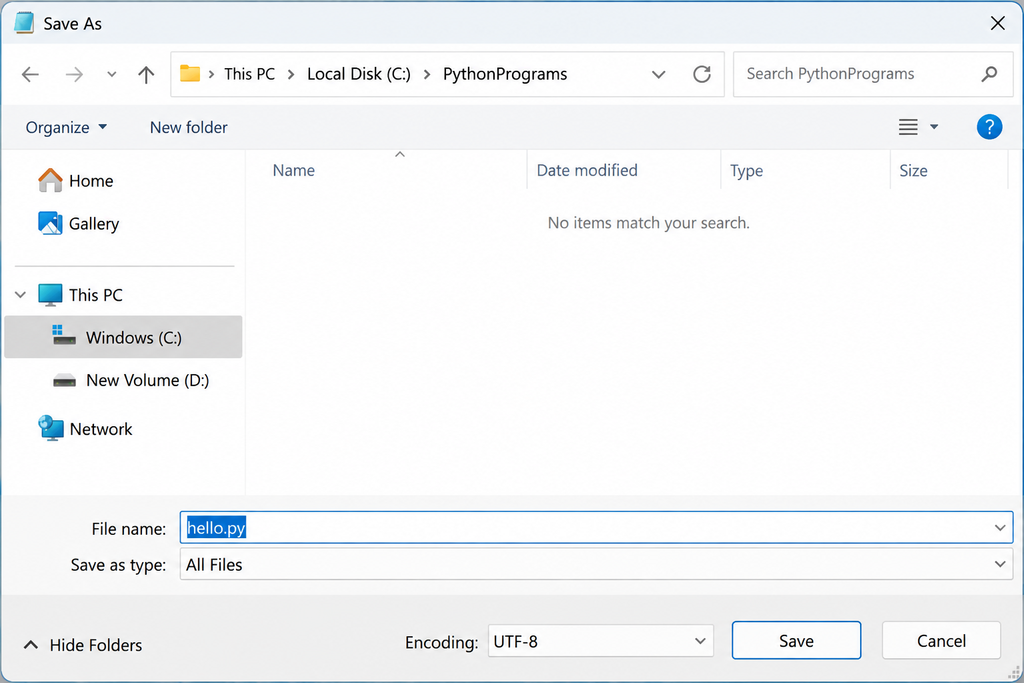
Click File → Save As in Notepad and save the program with the .py extension.
📁 File name: hello.py
📄 Save as type: All Files
📂 Location: C:\PythonPrograms
🚀 Click Save and your first Python program is ready to run!
⭐ Important: Make sure the file is saved as hello.py, not hello.py.txt. The .py extension tells Windows that it is a Python program.
🔍 3. Check the Python File
👀 Before opening Command Prompt, let’s quickly check whether our Python file hello.py has been saved correctly.
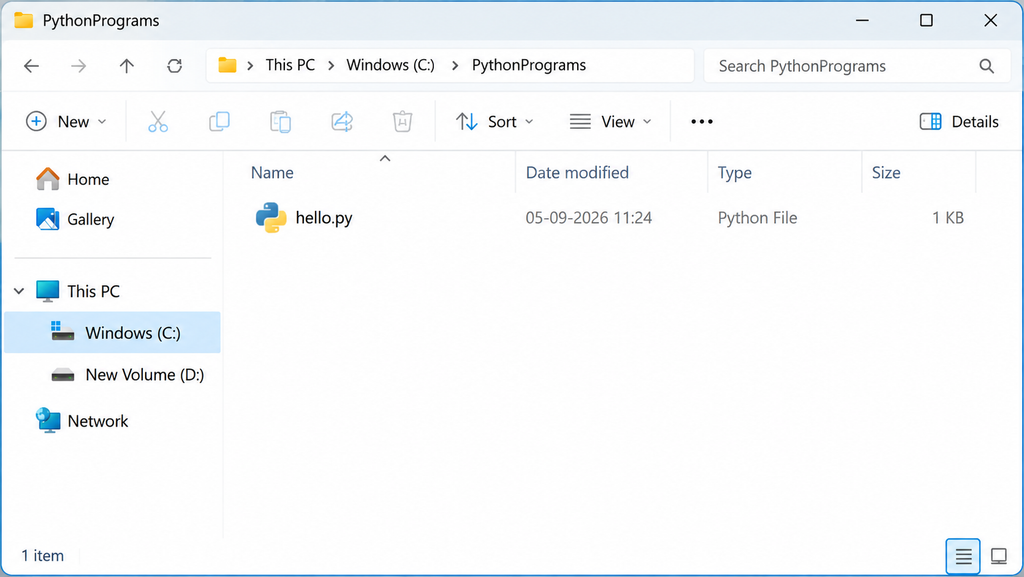
Open the PythonPrograms folder in File Explorer. You should see your Python program inside the folder.
📂 PythonPrograms
✅ If you can see hello.py, you’re ready for the next step — running your program from Command Prompt! 🚀
⭐ Quick Check: Make sure the file name ends with .py. If you see hello.py.txt, the file was not saved with the correct Python extension.
💻 4. Open Command Prompt
🚀 Now let’s open Command Prompt. This is where we will tell Python to run our program.
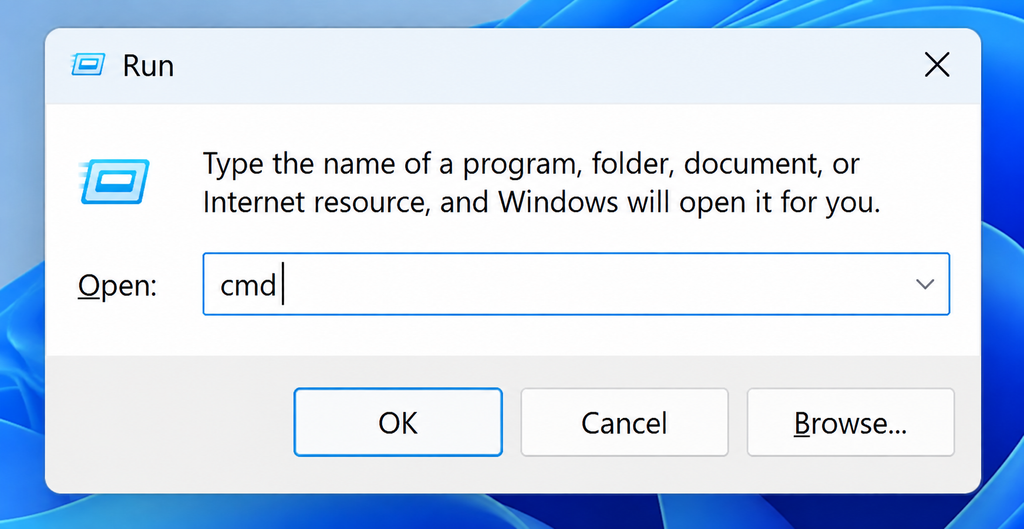
The easiest way is to press Windows + R on your keyboard. A small Run window will appear.
In the Run window, type:
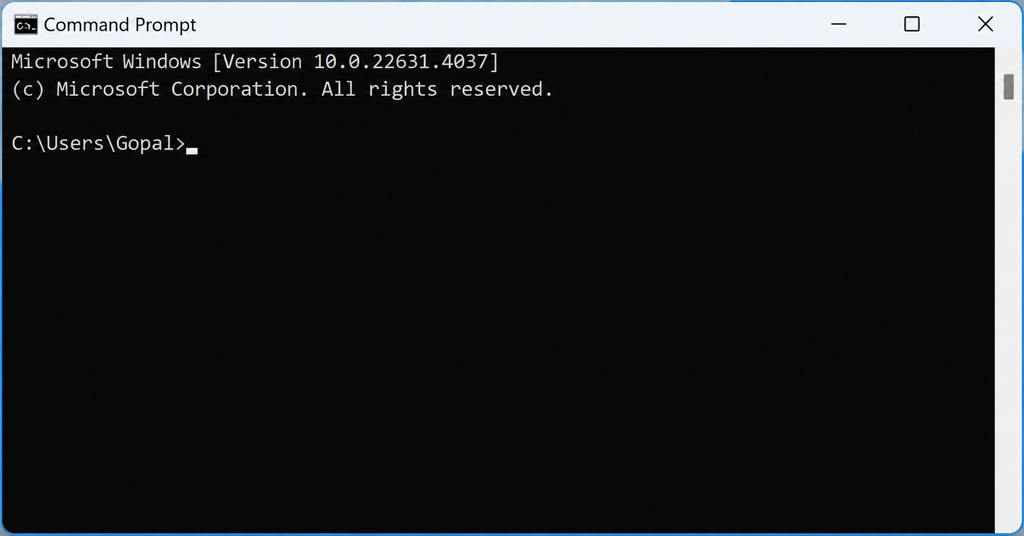
Finally, press Enter or click OK. 🎯 The Command Prompt window will open.
💡 Beginner Tip: Command Prompt may look a little old-fashioned, but don’t worry! 😄 We only need to type a few simple commands to run our Python programs.
🐍 5. Check Whether Python Is Working
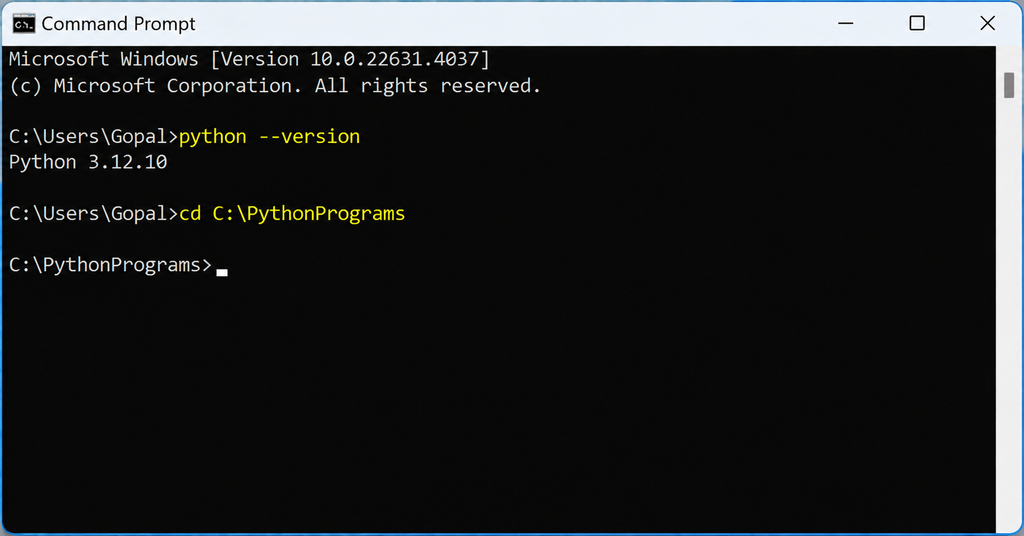
🔎 Before running our program, let’s make sure that Python is available from the Command Prompt.
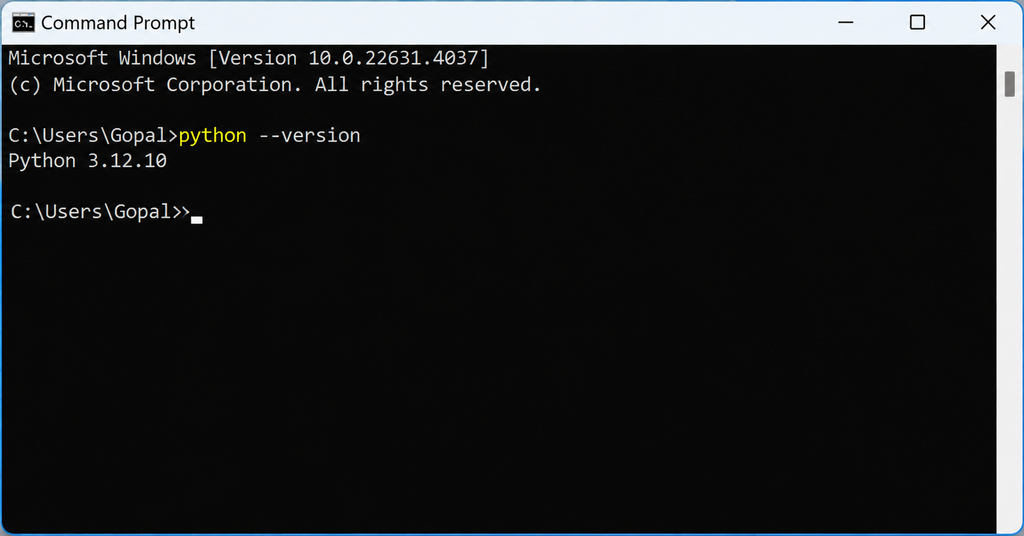
At the Command Prompt, type the following command and press Enter:
If Python is installed and correctly configured, you should see a message similar to:
Python 3.x.x
🎉 Great! If you can see the Python version, your computer is ready to run Python programs from the Command Prompt.
💡 Remember: The exact Python version shown on your computer may be different. For example, you might see Python 3.12.x, Python 3.13.x, or another installed version.
📂 6. Move to the Folder Containing Your Program
🎯 Our hello.py file is stored inside the C:\PythonPrograms folder. So, before running the program, we need to tell Command Prompt to move to that folder.
In Command Prompt, type the following command and press Enter:
The command cd means Change Directory. It tells Command Prompt which folder you want to work in.
Before: C:\Users\YourName>
After: C:\PythonPrograms>
✅ Now Command Prompt is inside the correct folder, and we are ready to run our Python program! 🚀🐍
💡 Beginner Tip: The folder path must match the location where you saved hello.py. If your file is saved somewhere else, use that folder’s path instead.
⚠️ Remember: Do not type the Python file name with cd. The cd command is used to move to a folder, not to run a Python program.
🚀 7. Run Your First Python Program
🎉 The moment has arrived! Our Python file is saved, Python is working, and Command Prompt is already inside the correct folder.
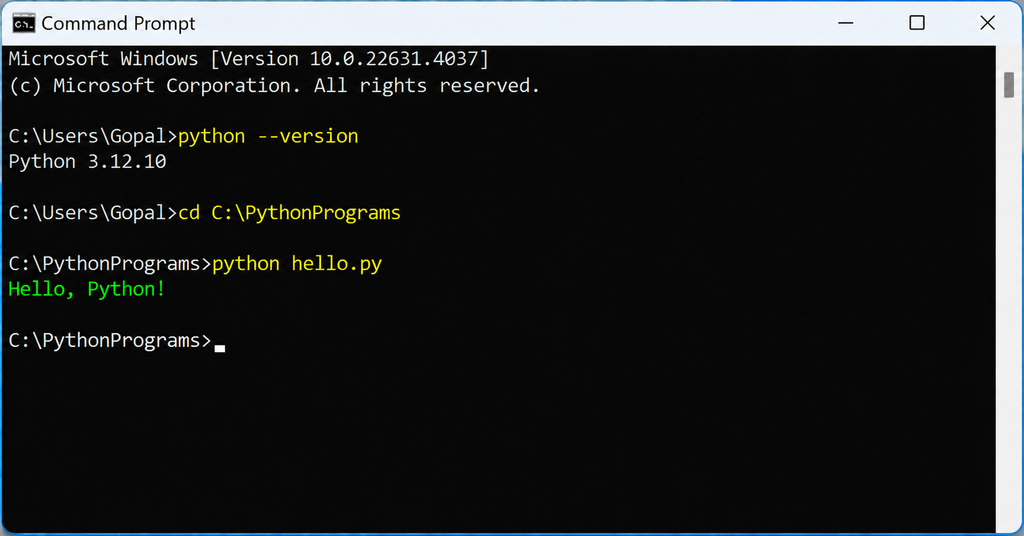
Now let’s run our first Python program. Type the following command and press Enter:
If everything is correct, Python will execute the program and display its output in the Command Prompt:
Hello, Python!
🎊 Congratulations! You have just written, saved, and successfully run your first Python program using Command Prompt. 🐍💻
💡 What just happened?
python tells Windows to start the
Python interpreter, while hello.py
tells Python which program to execute.
⭐ Remember: The exact output depends on the code written inside your Python file. In our example, the program contains print(“Hello, Python!”), so that message appears on the screen.
🧠 8. Explain What Happened
🎯 We just ran our first Python program from Command Prompt. But what exactly happened when we typed the command? Let’s break it down into two simple parts.
🐍 python
This tells Windows to start the Python interpreter. Python will read and execute the instructions in our program.
📄 hello.py
This is the Python program we want Python to execute. The .py extension identifies it as a Python source file.
python → Start Python
hello.py → Select the program to execute
Python → Reads and executes the code
Output → Appears in Command Prompt
✨ Write Code → Run Python → See Output 🎉
💡 Beginner Tip: You don’t need to memorize everything right away. Just remember this simple pattern: python + filename.py is a common way to run a Python program from Command Prompt.
🎯 9. Run a Slightly More Interesting Program
🌟 Our first program simply displayed a message. Now let’s make Python interact with us!
In this example, the program will ask for your name and then greet you. Create a new file named name.py and enter the following code:
print (“Hello”, name)
💻 Save the file and return to Command Prompt. Make sure you are inside the folder containing name.py. Then type:
Python will run the program and wait for you to enter your name:
Enter your name: Gopal
Hello Gopal
🔎 What is happening here?
input() asks the user to enter something and stores the entered value in the variable name.
Then print() displays a greeting using the name entered by the user.
🎉 Nice! Your Python program is no longer just displaying information — it is now taking input from you and responding! 🐍💻
🧮 10. Create a Simple Calculator Program
🚀 Now let’s try something a little more practical! We will create a simple calculator program that performs basic arithmetic operations.
Open Notepad, create a new file named calculator.py, and enter the following code:
b = 5
print (“Addition:”, a + b)
print (“Subtraction:”, a – b)
print (“Multiplication:”, a * b)
print (“Division:”, a / b)
💾 Save the file and return to Command Prompt. Make sure you are inside the folder where calculator.py is saved.
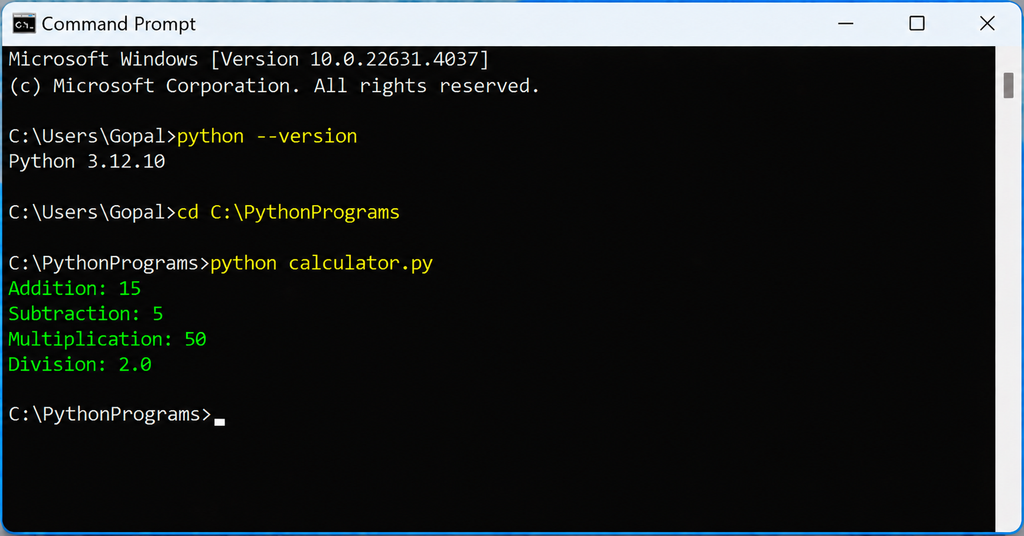
Now run the program using:
🎯 You should see the following output:
Addition: 15
Subtraction: 5
Multiplication: 50
Division: 2.0
🔎 What did we do?
We stored the numbers 10 and 5 in the variables a and b. Then we used Python’s arithmetic operators to perform four basic calculations.
🎉 You’re getting the hang of it! You have now run multiple Python programs directly from Command Prompt. Every new program you create follows the same basic process: Write → Save → Run → See the Output! 🐍💻
🔄 11. Understand the Complete Workflow
🎯 You have now seen how to write and run a Python program using Command Prompt. Let’s put all the steps together so you can remember the complete process easily.
Write your Python instructions using Notepad or another text editor.
Save the program with the .py extension, such as hello.py.
Open Command Prompt using Windows + R and type cmd.
Use the cd command to move to the folder containing your Python file.
Type python hello.py and press Enter.
Python executes your code and displays the result directly in Command Prompt.
Write Code → Save .py → Open CMD → cd to Folder → Run → See Output 🎉
⭐ Remember this simple formula:
Write
→
Save
→
Navigate
→
Run
→
See the Result
🚀
🧪 12. A Small Practice Exercise
🎯 Now it’s your turn! You have learned how to write, save, and run Python programs. Let’s put everything together with one small challenge.
📝 Your Task
Create a new Python file named student.py and write a program that asks the user for their name and course.
✍️ Enter the following code in your Python file:
course = input (“Enter your course: “)
print (“Welcome”, name)
print (“You are learning”, course)
💡 Next Step: Save the file inside your C:\PythonPrograms folder. Then open Command Prompt and run:
🎉 If everything works correctly, you should see something similar to:
Enter your name: Gopal
Enter your course: Python
Welcome Gopal
You are learning Python
🌟 Challenge Yourself!
Once the program works, try changing the messages or adding another question. For example, ask the user for their favorite programming language and display it in the output.